Soter support
Occupant web app guide
Use the occupant web app to handle current door alerts, plan expected visits, review what happened at the door, and manage household settings. The sections you see depend on your account permissions.
Screenshots on this page use dummy names, dummy device IDs, and sample household data.
Account access
Permissions
Your account may have been set up with a number of these permission. These can be changed by someone with admin access.
First use
Sign in
Open the Soter occupant app link, enter the invited email address, and choose the correct button for where you are up to.
Can see Door page / alerts
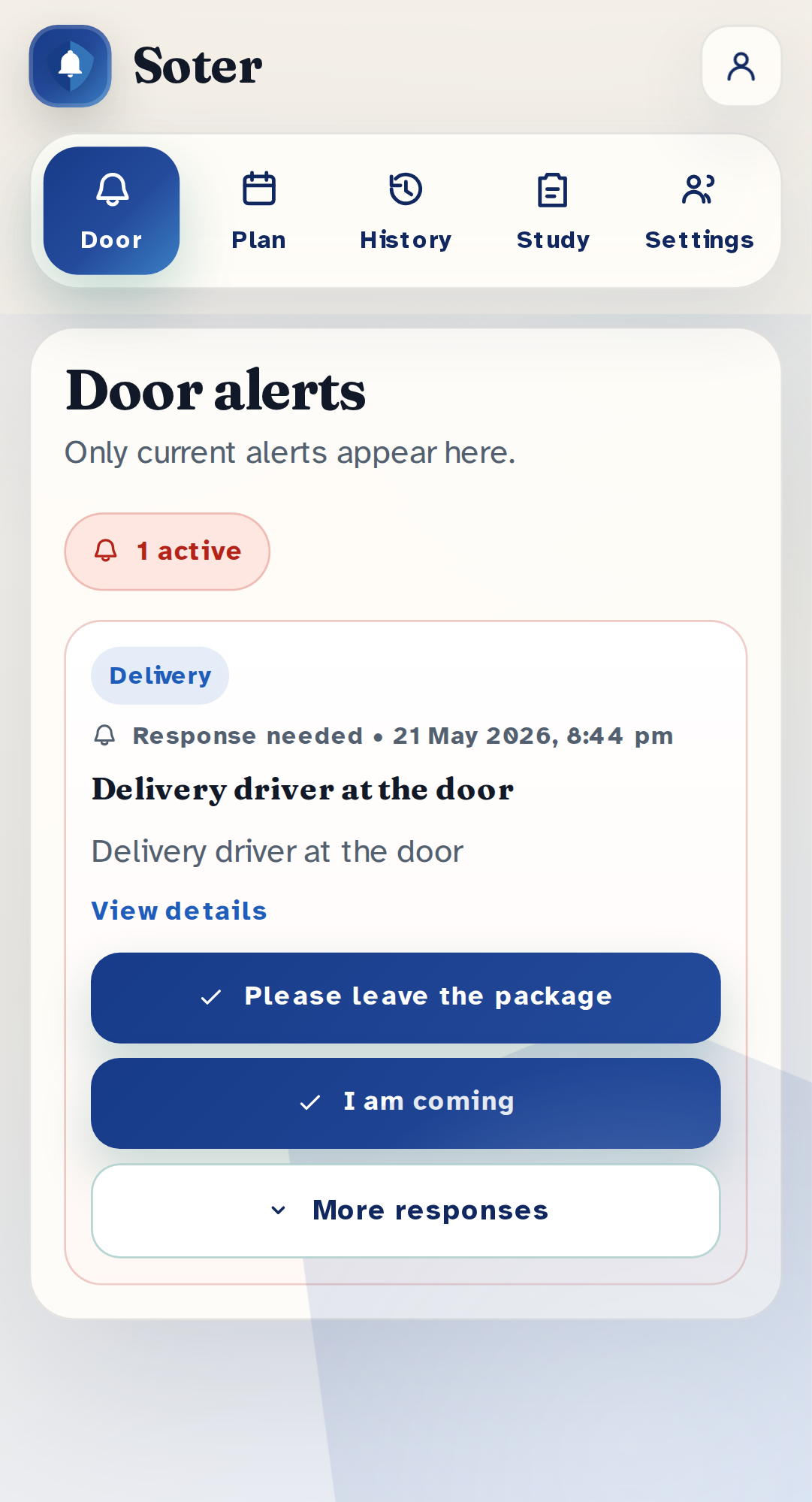
Door alerts
The Door tab shows current alerts only. If there are no active alerts, it will say that everything is quiet.
Visitor says they have a delivery for Pat.
Can set appointments
Appointments
Appointments tell Soter who is expected and when. This helps with support visits, recurring care, deliveries, and temporary PIN checks.
Weekly wound dressing. Temporary PIN saved.
Can see interaction history
Interaction history
History is for past interactions. Use it when you want to check who came, what they said, what Soter did, and whether any message needs to be passed on.
Search and filter 12 of 14 matches
Left a medication parcel in the porch box.
Verified by appointment.
Pilot: surveys
Study and surveys
Pilot households may see the Study tab. It is for short research surveys and visit logs. Each invited household member can have their own response.
Today 11:42 AM - Package delivery
Can set operating modes
Operating modes
Operating modes are on the Settings page.
Soter should be left in Normal mode. Quiet Mode is used when generating a baseline report: Soter will still record faces, but not listen or engage in a conversation. Privacy stand down does not record anything.
Can view settings pages
Household settings
This permission adds the wider Settings page. It is for household admins and trusted support people because changes can affect alerts, recognised visitors, and access for other users.
Viewing alerts from Front door unit.
alex@example.com - Can see Door page / alerts - Can set appointments
Full admin access
Full admin
Full admin access is the highest occupant-web permission. A full admin can see every tab and is treated as having every individual permission, including future permissions added to the app.
Give full admin access only to people who should be able to change household settings and manage other users. For most family members, carers, or support people, choose the individual permissions they actually need.